- Best for
- Percentage or fixed discounts by product group
- Discount types
- Percentage, Fixed Amount
- Platforms
- Checkout, POS, or both
- Code required?
- Yes — automatic
Tier Discount
Overview
Tier Discount lets you apply percentage or fixed amount discounts to specific products or variants. Each tier targets a set of products and applies its own discount value, making it ideal for promotions like "20% off Kitchen range, 30% off Bedroom range" within a single discount.
You can optionally require a minimum quantity per cart line before the discount applies, and control which products receive the discount using a selection strategy.
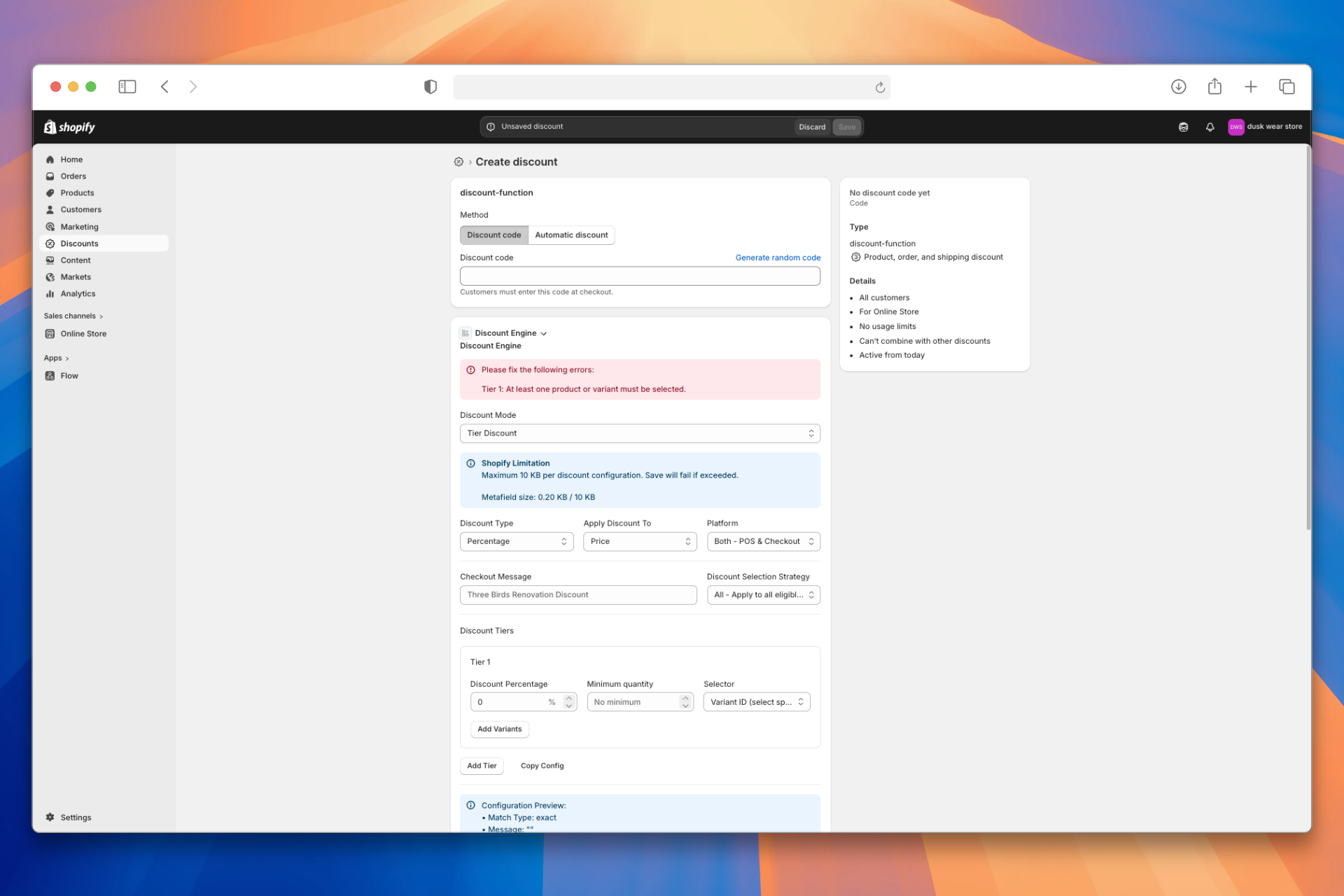
Configuration Reference
Top-Level Fields
| UI Label | Type | Required | Default | Description |
|---|---|---|---|---|
| Discount Mode | string | Yes | — | Set to Tier Discount |
| Discount Type | string | Yes | Percentage | Percentage or Fixed Amount |
| Discount Tiers | object | Yes | — | Map of discount values to tier configs (see below) |
| Checkout Message | string | No | "" | Custom prefix shown at checkout (e.g. "FLASH SALE") |
| Apply Discount To | string | No | Price | Price or RRP (Compare At Price) |
| Platform | string | No | Both - POS & Checkout | Both - POS & Checkout, POS Only, or Checkout Only |
| Discount Selection Strategy | string | No | All | All, First, or Maximum |
Tier Configuration
Each tier is added via the Add Tier button. Each tier has:
| UI Label | Type | Required | Default | Description |
|---|---|---|---|---|
| Discount Percentage / Amount | number | Yes | — | The discount value for this tier |
| Selector | string | No | Variant ID | Variant ID (select specific variants) or Product ID (select whole products) |
| Add Variants / Add Products | picker | Yes | — | The products or variants that receive this tier's discount |
| Minimum quantity | number | No | 0 | Minimum quantity on a single cart line to qualify |
Discount Selection Strategy
| Option | What the customer sees |
|---|---|
| All - Apply to all eligible products | All eligible products are discounted |
| First - Apply to first eligible product | Only the first eligible product is discounted |
| Maximum - Apply to product with highest discount | Only the product with the highest discount amount is discounted |
Examples
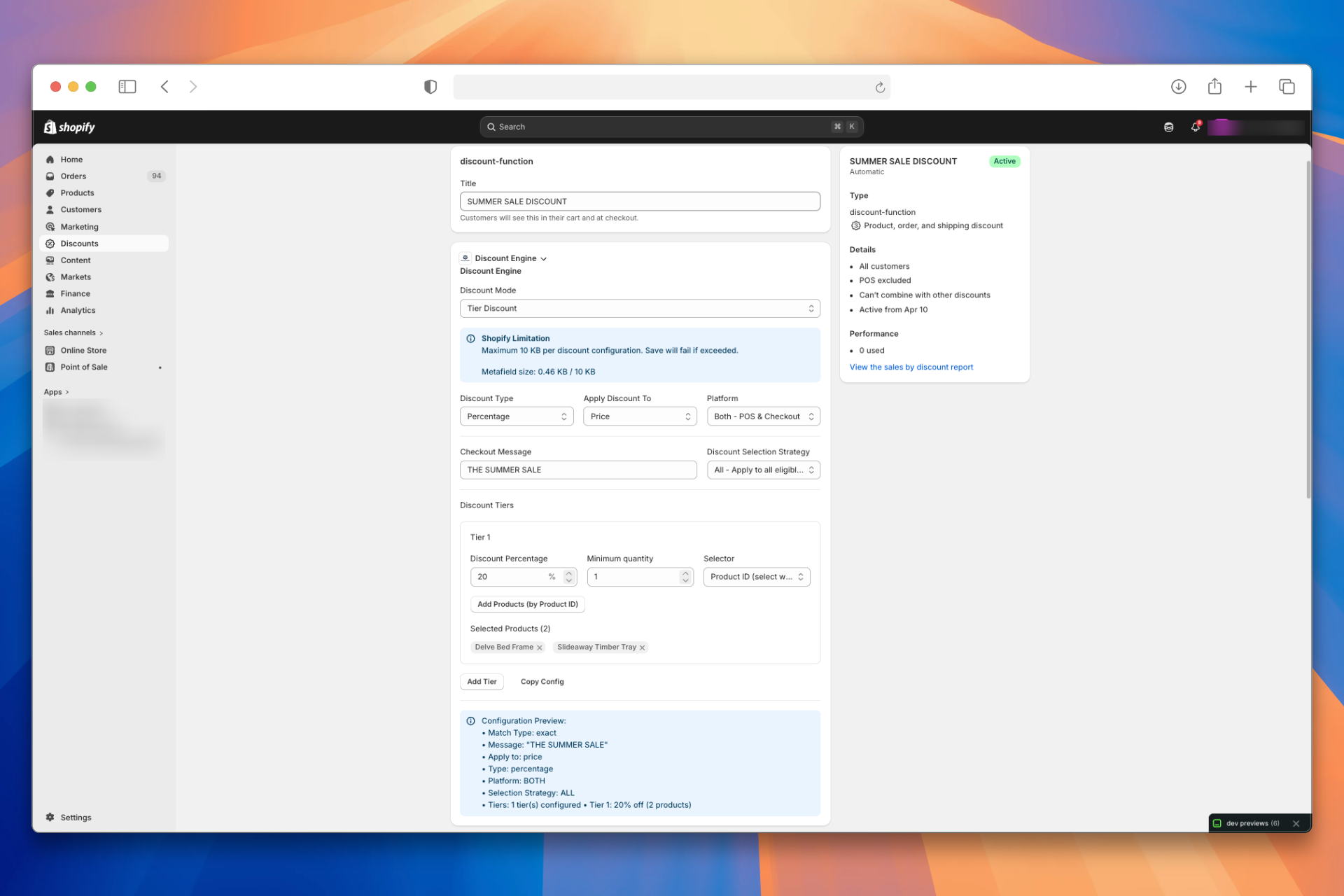
Example 1: Simple Percentage Discount
20% off two products during a summer sale.
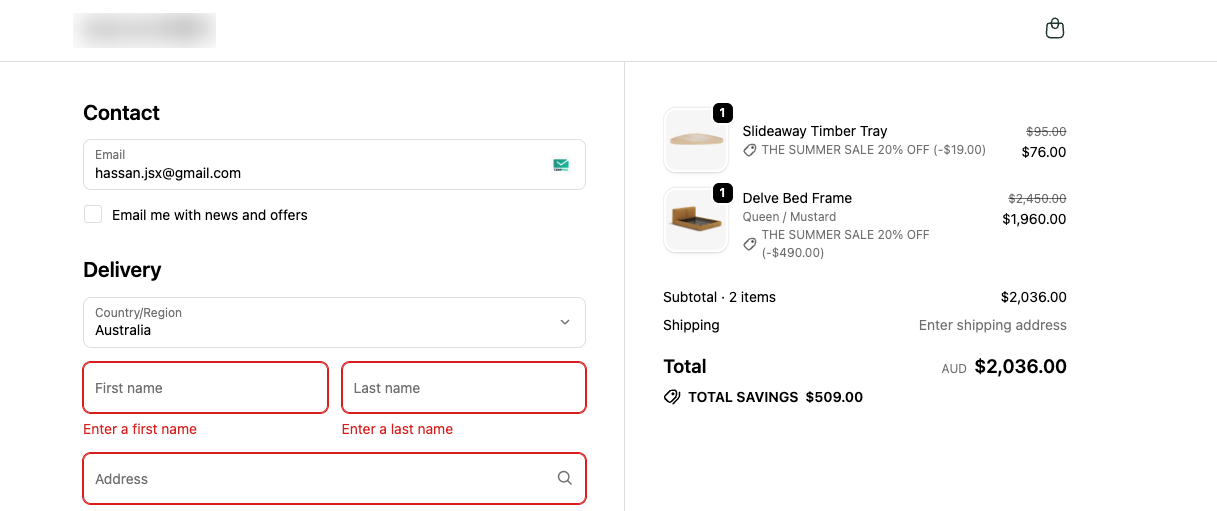
At checkout: Both products show "SUMMER SALE 20% OFF" with 20% deducted from each.
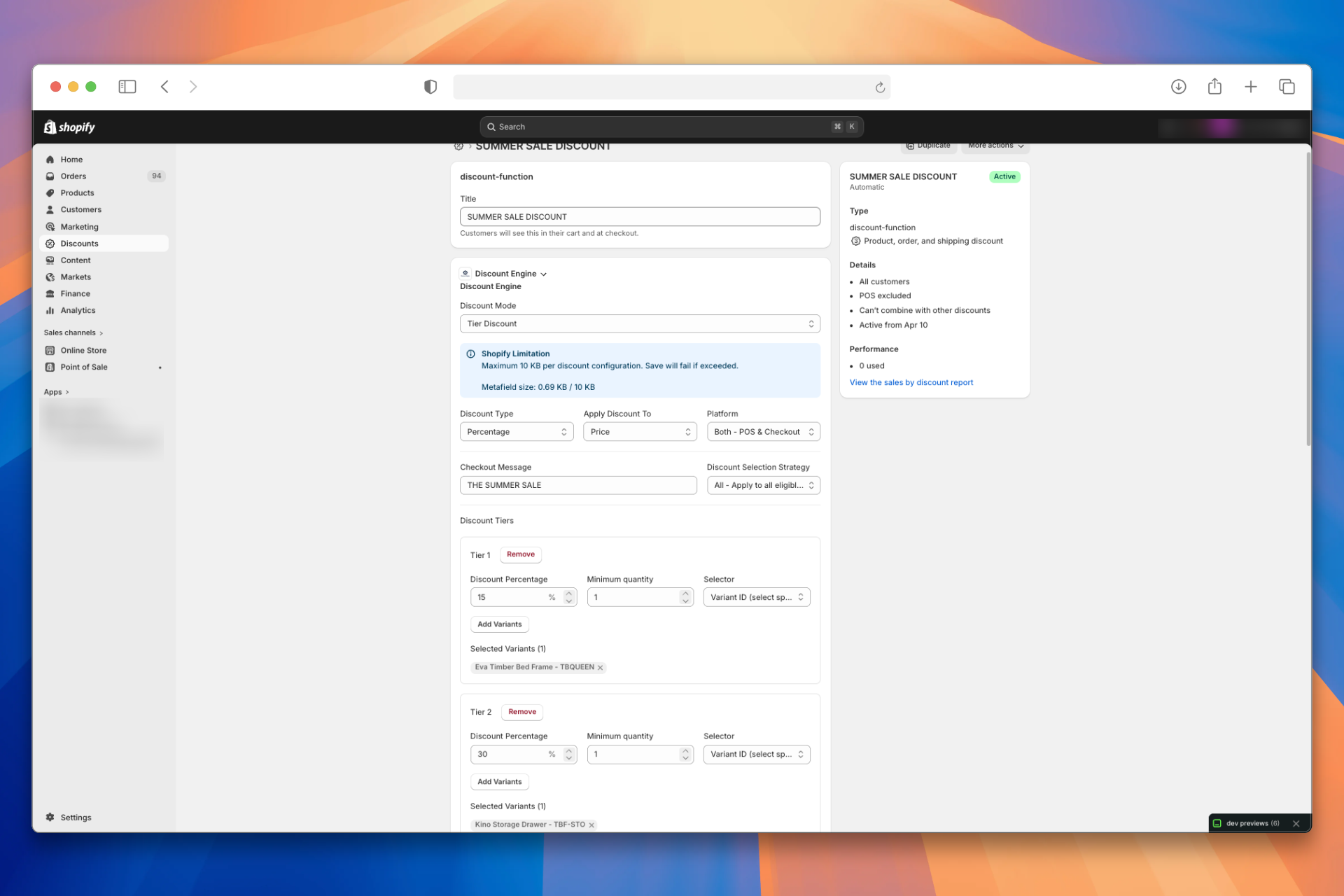
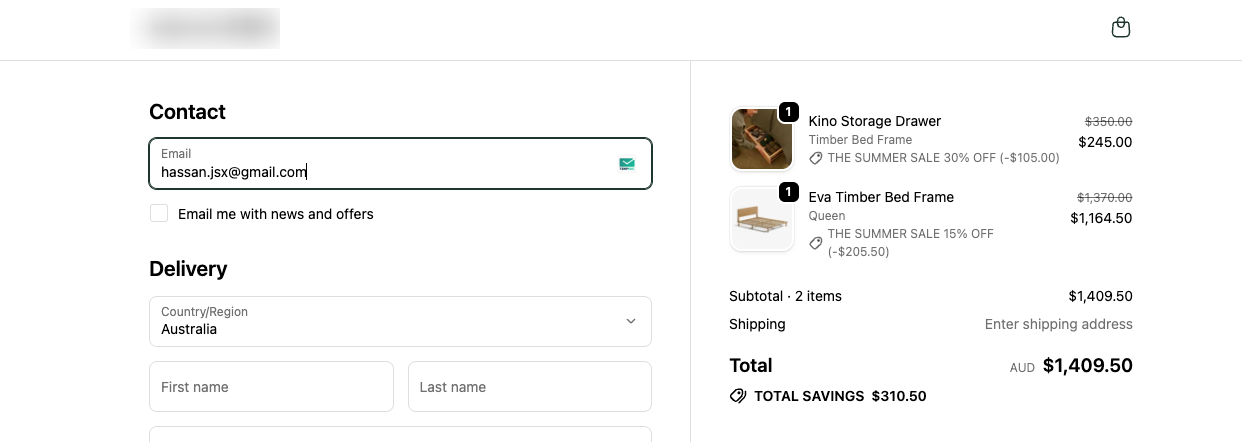
Example 2: Multiple Tiers
Different discounts for different product groups — 15% off one variant, 30% off two products.
At checkout: The specific variant shows "15% OFF". The other product show "30% OFF".
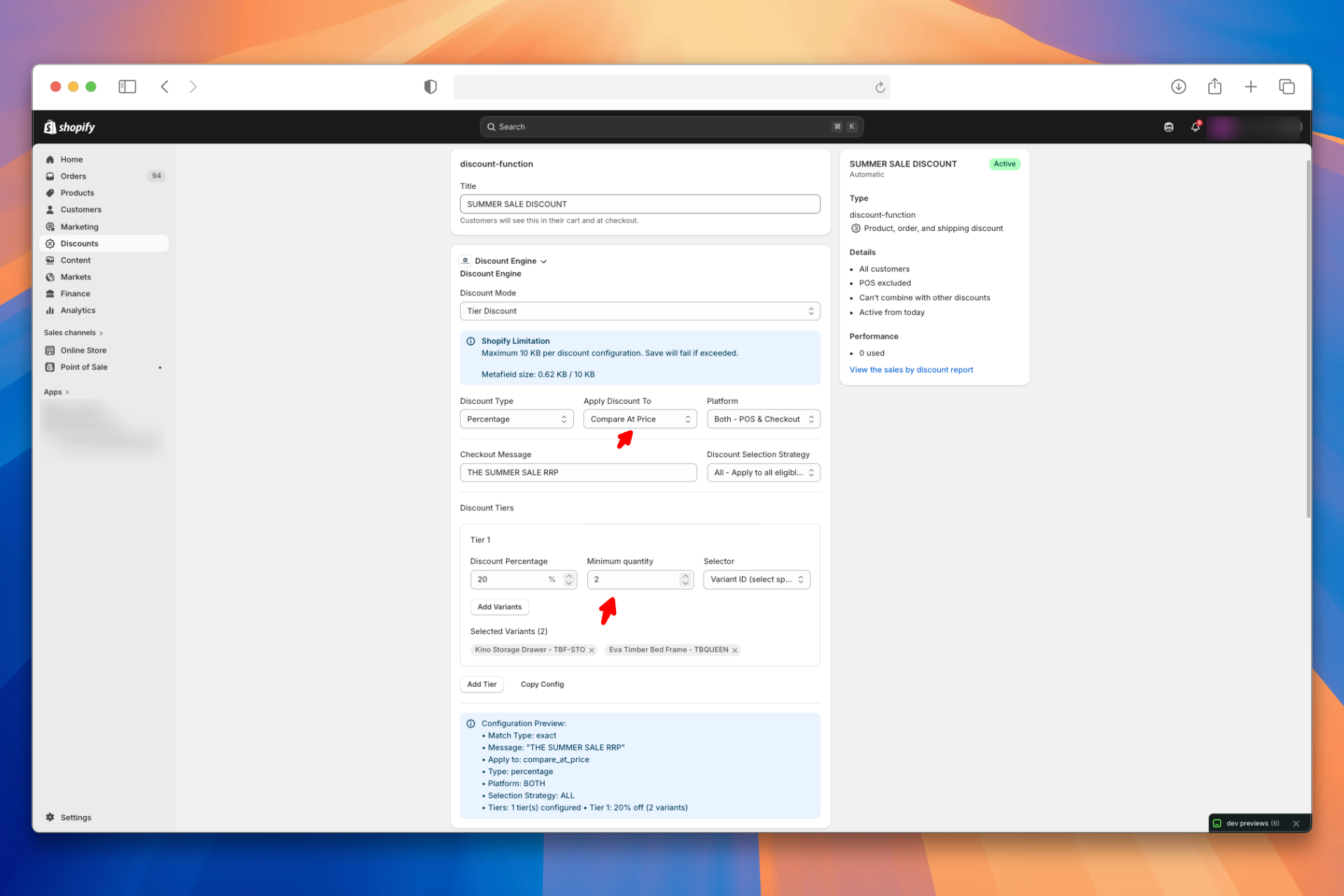
Example 3: Minimum Quantity with RRP
Discount only applies when the customer has 2+ units on a single cart line. The discount is calculated from the RRP (compare-at) price.
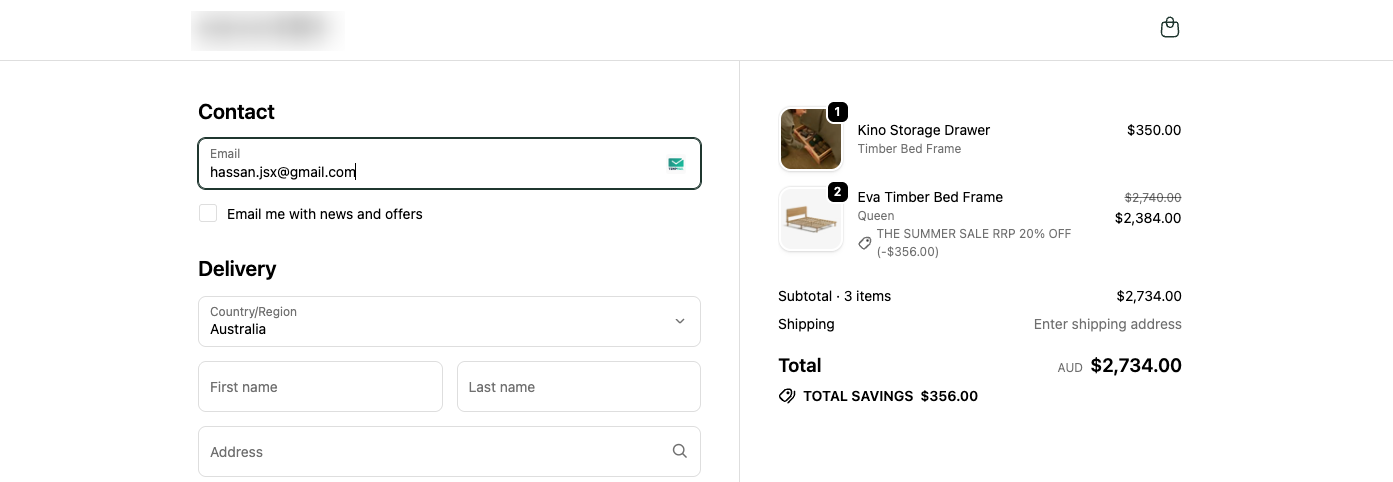
At checkout:
- 1 unit in cart — no discount
- 2+ units in cart — shows "THE SUMMER SALE RRP 25% OFF", calculated from the RRP
Frequently Asked Questions
Does minimum quantity apply per cart line or per cart total?
Minimum quantity is evaluated per cart line, not across the cart total. Two separate cart lines of qty 1 each will not meet a minimum of 2, even if they are for the same product. The customer must add 2+ units on a single line to qualify.
Can I combine percentage and fixed amount discounts in the same Tier Discount?
No. The Discount Type (Percentage or Fixed Amount) is set at the top level and applies to all tiers within that discount instance. If you need some products discounted by percentage and others by a fixed amount, create two separate Tier Discount instances — Shopify will automatically apply the best available discount to each product.
What happens if a product appears in more than one tier?
Each product or variant should only appear in one tier within a single Tier Discount instance. If you need overlapping product sets with different discount values, use separate discount instances and let Shopify resolve the best discount.
What does the "Apply Discount To RRP (Compare At Price)" option do if a product has no RRP set?
When Apply Discount To is set to RRP (Compare At Price) but a product has no compare-at price configured in Shopify, the discount is calculated from the current selling price instead. No error is shown — the discount still applies.
How does the "Maximum" selection strategy choose which product to discount?
The Maximum strategy calculates the discount amount for every eligible product line in the cart and applies the discount only to the single line where the discount value (in currency) would be highest. All other eligible lines remain at full price.
Does Tier Discount work on Shopify POS?
Yes. By default, the Platform setting is Both - POS & Checkout, so the discount applies at both online checkout and POS. You can restrict it to POS Only or Checkout Only if needed.
Demo
See how to configure a Tier Discount and how it appears at checkout.